How to make a QR code for Google reviews that people actually scan
A QR code is the simplest way to ask for Google reviews. These are the details that decide whether anyone scans it.
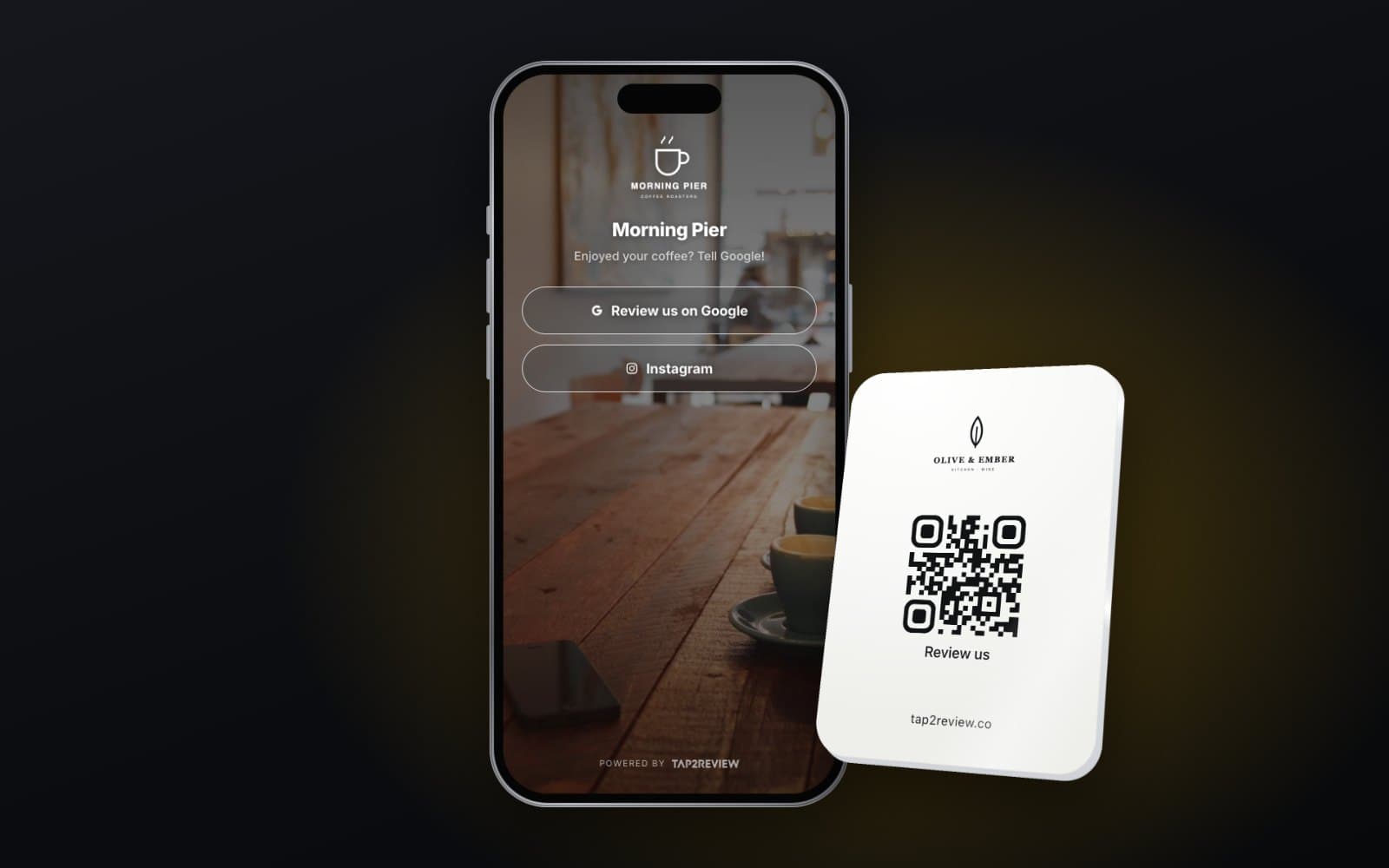
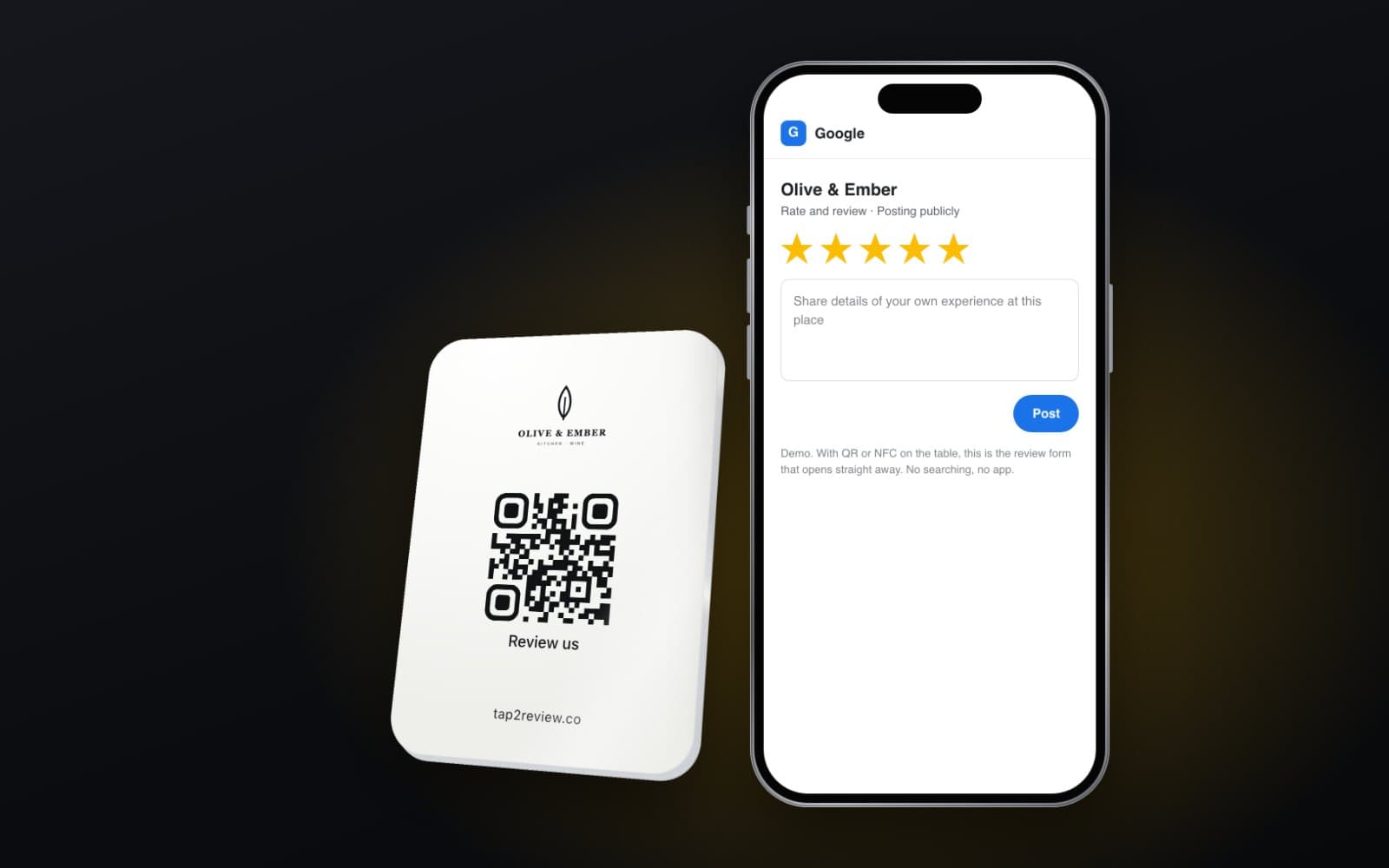
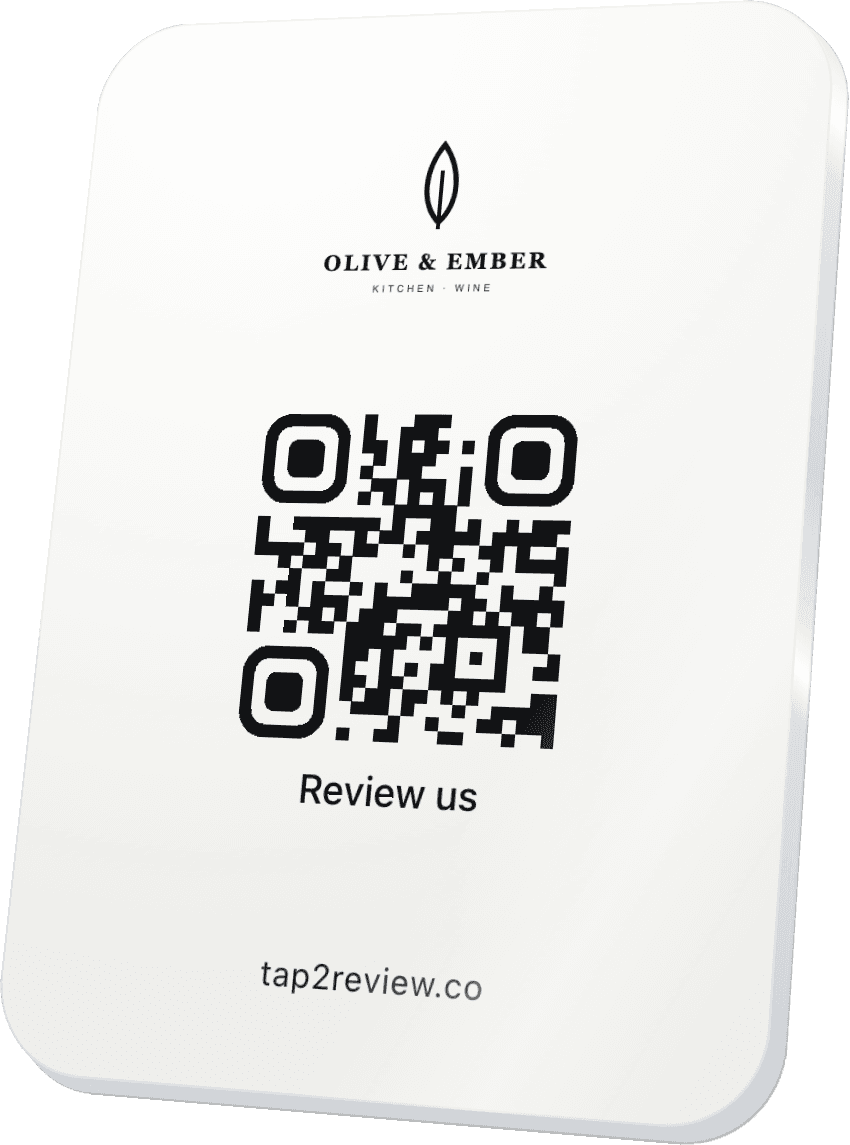
A QR code for Google reviews is about the simplest tool there is for collecting reviews: a square printed on a sign, a receipt or a table stand that opens your review form when someone points their camera at it. It costs almost nothing to make. The difference between a code that gathers reviews and one that gathers dust is in the details: the link behind it, the size, the wording and where it sits.
Step 1: get your direct review link
Do not point the QR code at your website, or at a search for your business name. Point it at the review form itself. Google gives every Business Profile a short link for exactly this.
- Sign in to the Google account that manages your Business Profile.
- Find your profile, either by searching your business name on Google or in the Business Profile manager.
- Choose “Ask for reviews” or “Get more reviews”, and copy the link.
- Open it on your phone. It should open the review form with the stars ready to tap.
Step 2: choose a fixed or an editable code
A static QR code contains the link itself. It works for as long as the link does, but you can never change where it points. A dynamic, or editable, QR code points to a short address you control, which then forwards people wherever you choose. You can change the destination later without reprinting anything.
For a single sign, a static code to your Google link is fine. If you are printing many stands, cards or stickers, an editable code, or a review profile with several buttons, saves you from reprinting when something changes, such as adding Tripadvisor or Booking.com.
Step 3: design it to be scanned
- A dark code on a light background, with strong contrast. Inverted or pale codes fail on some phones.
- A clear margin around the code. Text or borders crowding the edges stop it scanning.
- The right size for the distance. A code on a table can be small; a code on a wall across the room needs to be much bigger. Test it from where your customers actually stand.
- Words that say what happens. “Scan to review us on Google” beats a bare code with no explanation.
- Your logo and brand colours around the code, not over it.
Step 4: put it where the experience ends
Placement decides more than design. The right spot is where customers are when they have just had the experience, with a moment to spare.
- Restaurants and cafés: on the table or in the bill folder.
- Shops: at the till and on the receipt.
- Hotels and holiday lets: in the room and with the check-out information.
- Salons and clinics: at reception, where people pay and wait.
- Museums and attractions: at the exit and in the gift shop. Our clients include the Game of Thrones Museum in Split, and for any museum the end of the visit is the natural moment to ask.
- Trades and home services: on the invoice, on the van and on a card left after the job.
QR or NFC?
QR codes work on every smartphone with a camera, which is their great strength. Their weakness is that scanning takes a moment: open the camera, frame the code, tap the link. An NFC tag opens the profile with a tap of the phone, which is quicker, but some people have NFC switched off. The practical answer is both on the same stand or card: NFC for speed, QR for everyone else.
Step 5: stay inside the rules
Google's review policy prohibits businesses from selectively soliciting positive reviews from customers, and from offering incentives in exchange for reviews. It now also prohibits asking staff to collect a set number of reviews, or asking for reviews that name a member of staff. In the UK, the Digital Markets, Competition and Consumers Act 2024 has applied to fake and misleading reviews since 6 April 2025, and the Competition and Markets Authority can fine businesses up to 10% of their global turnover.
So the QR code goes where every customer can see it, the wording asks everyone, and nobody gets a discount or a free coffee in return. If you also want private feedback, put a second option next to the review link, such as “Something not right? Tell us directly”, so each customer chooses. Never route people you think are unhappy away from the public form.
Mistakes we see often
- A code that opens your Maps listing, not the review form.
- Codes printed too small, too pale or in a corner nobody looks at.
- Codes in direct sunlight that fade over a season and stop scanning.
- A single code at the front door, before customers have experienced anything.
- No wording at all, so people do not know what the code is for.
Where Tap2Review fits
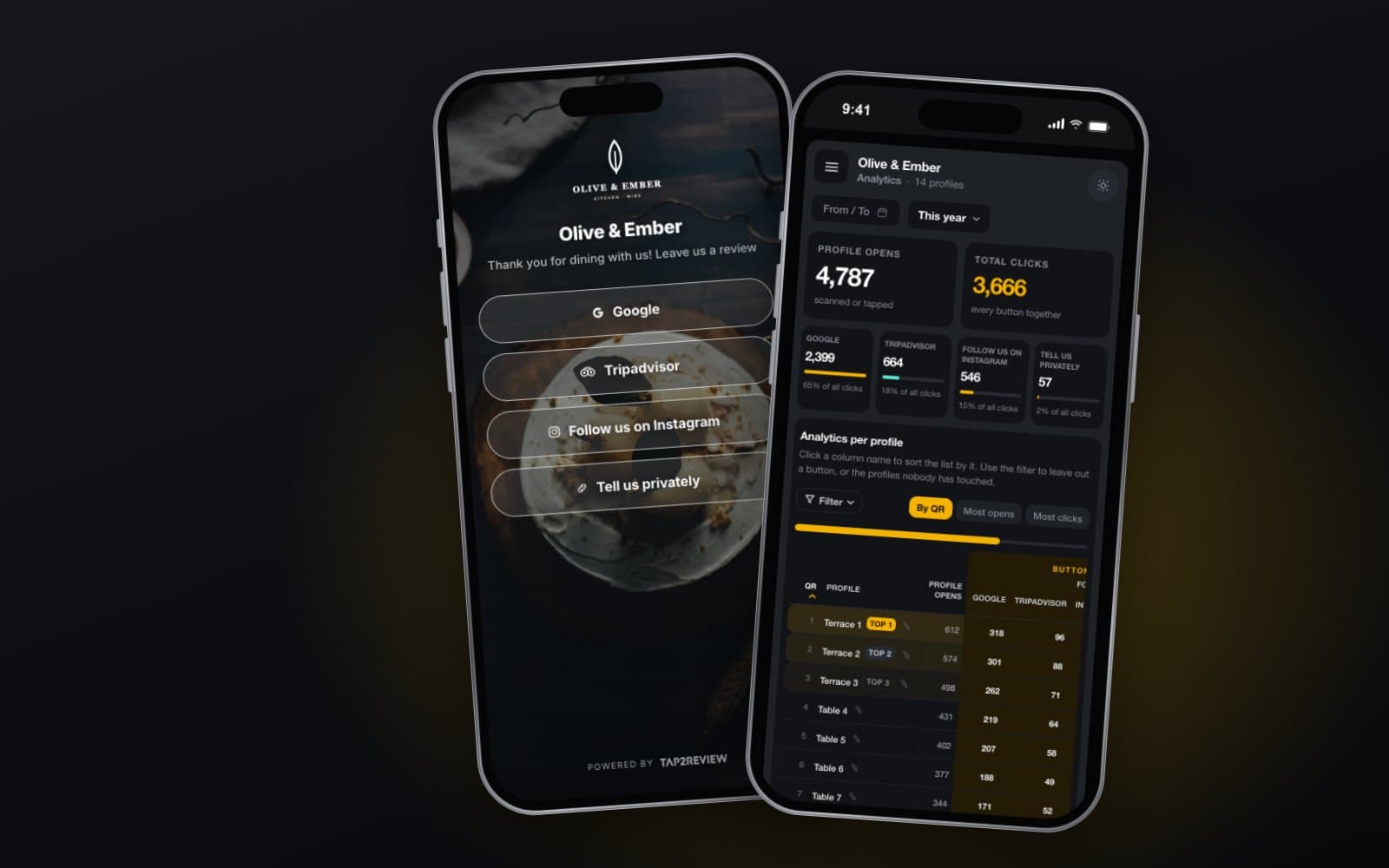
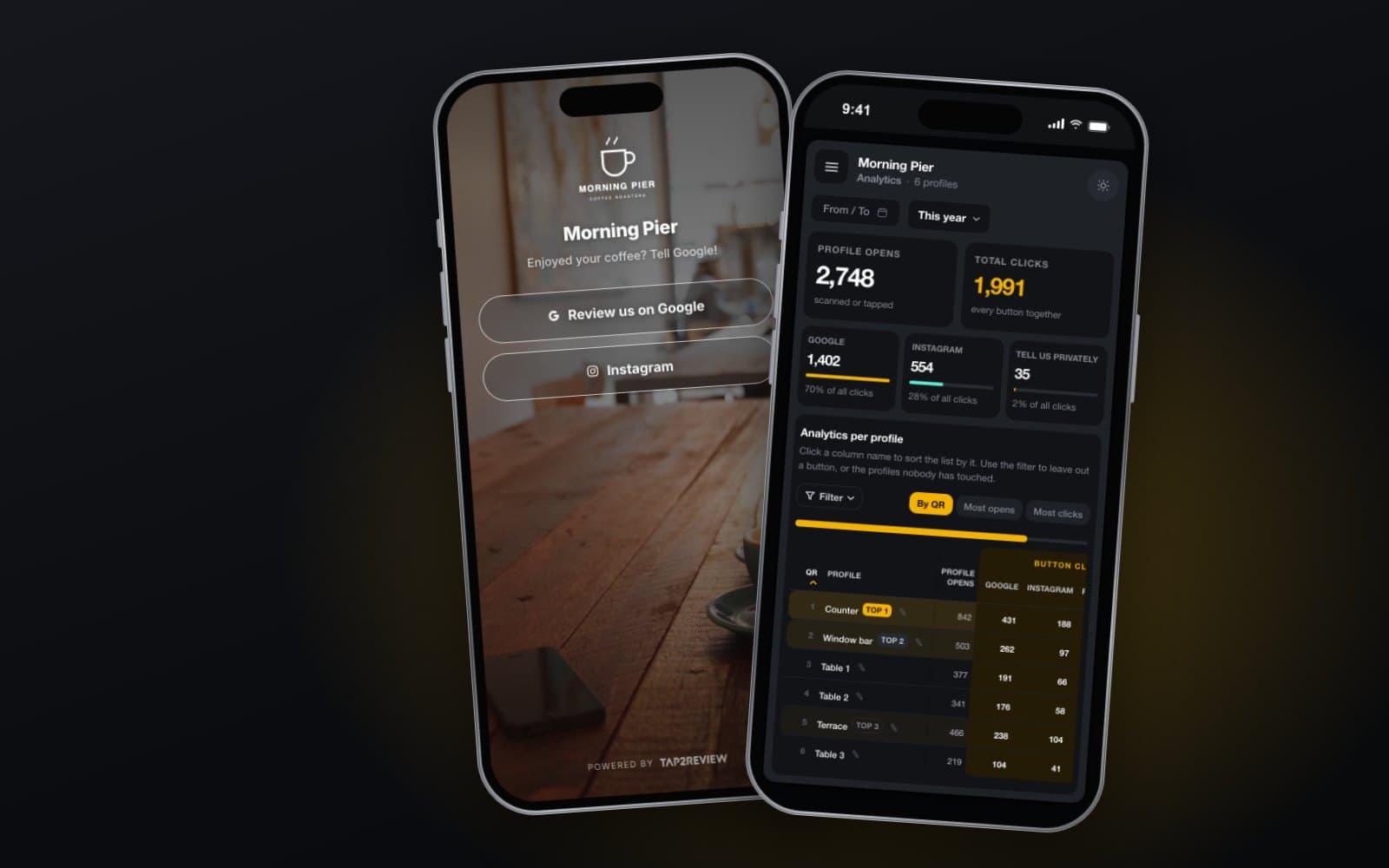
Tap2Review combines an NFC chip and a QR code on one branded stand, card or sticker, pointing to a review profile you edit yourself. You choose the platforms and their order, add a private feedback button beside them if you want one, and see how often each one is used. The Tap2Review page has live demos for six industries that you can try on screen.
How do I create a QR code for Google reviews?
Copy the review link from your Google Business Profile (Ask for reviews), turn it into a QR code, and check on your phone that it opens the review form.
Is a QR code for Google reviews free?
The review link and a basic QR code cost nothing. Printed stands, NFC cards and editable codes are where people pay for convenience.
Can I put the review QR code on receipts?
Yes. Receipts, invoices and follow-up emails are good places, as long as every customer gets the same request.
Can I offer a discount to customers who scan and review?
No. Google prohibits incentives for reviews, and UK law bans concealed incentivised reviews.