Business cards for teams: rolling out digital cards across a company
Ordering cards for one person is easy. Keeping a whole team's cards accurate is not. Here is how to do it with digital cards.
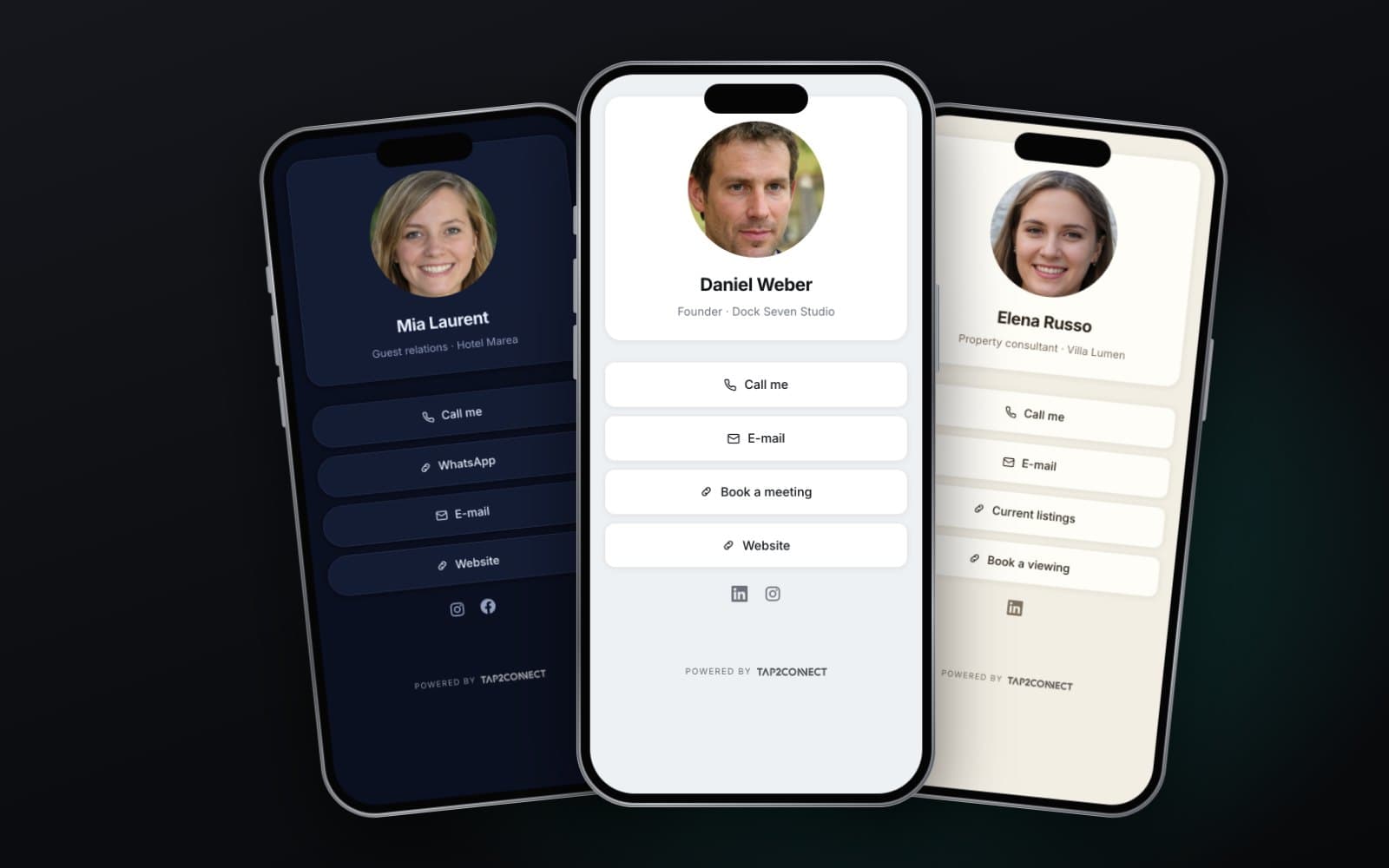
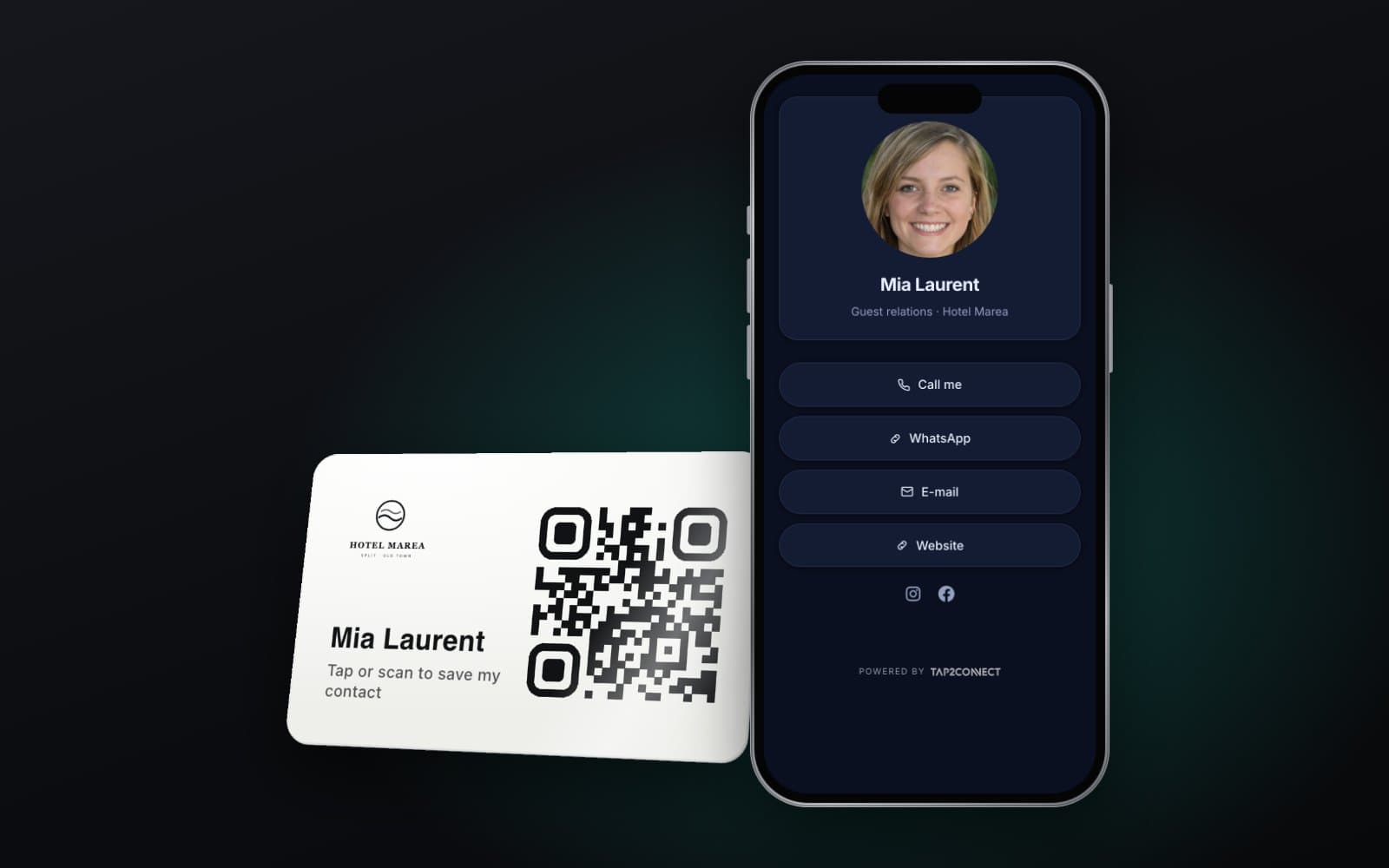
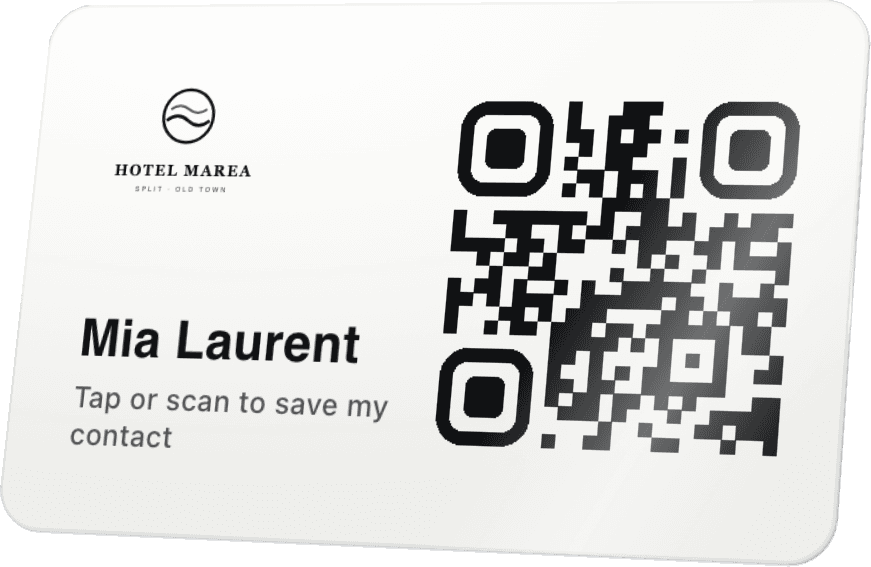
Ordering business cards for teams used to mean a spreadsheet of names, a print run, and a box of cards that went out of date the moment someone changed role or left. Digital business cards change that. Each person has a card or sticker with an NFC chip and a QR code that points to their own profile, and all the profiles are managed in one place. This guide covers how to roll them out across a company and keep them accurate.
Why teams move to digital cards
- One look across the company. Every card follows the same design and company details, with only the person changing.
- Updates without reprinting. A new phone number, job title or office address is changed once, and every card follows.
- New starters get a card on day one, not after the next print run.
- Leavers stop pointing customers at someone who has gone. Their profile can be handed to a colleague or pointed at the main office.
- Consistent next steps. Every profile can carry the same booking link or quote button, so customers always land in the right place.
Among the teams we have made cards for are UK companies Diamond FS and Jet Through, alongside charter companies and agencies on the Adriatic. The rollout questions turn out to be the same everywhere.
Step 1: agree the layout
Decide once what every profile shows, so nobody improvises. A typical team layout includes:
- Name, job title and photo, in a consistent style.
- Direct mobile and email, with UK numbers written in +44 format.
- A save contact button at the top.
- Company logo, website and main office address.
- One shared action: book a meeting, request a quote or see recent work.
- A personal LinkedIn profile, if the person uses it for work.
Then decide which fields people may change themselves, such as the photo or a personal booking link, and which stay locked to the company, such as the logo and the office address.
Step 2: collect accurate details
Send each person a short form rather than copying details from old email signatures. Ask them to confirm how their name and title should appear, their mobile number and a recent photo. Accurate details at the start save a round of corrections later.
Step 3: choose the formats
- Cards for people who meet customers face to face: sales, account managers, directors.
- Phone stickers for people who are always on the move: engineers, supervisors, drivers, skippers.
- Just a link for people who mostly work by email, added to their email signature.
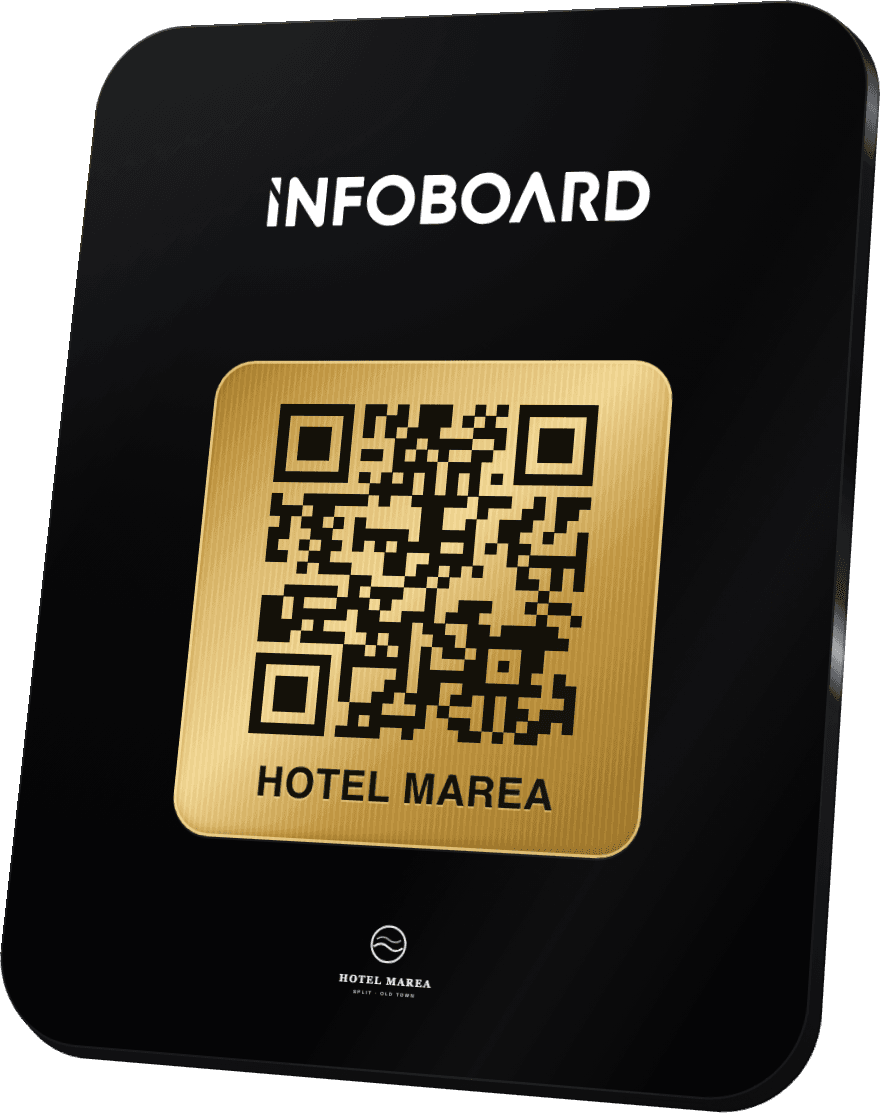
- A small sign at reception or on an exhibition stand that points to the company profile.
Step 4: plan for starters, leavers and changes
This is where team cards earn their keep, and where rollouts fail if nobody owns them.
- Name an owner, usually someone in operations, marketing or HR, who adds and removes people.
- Add a card to the new starter checklist, next to the laptop and the email account.
- Add the card to the leaver checklist: hand the profile to a colleague or point it at the main office, then collect the physical card.
- When the brand changes, update the shared layout once rather than every card.
Step 5: show people how to use it
A short demonstration at a team meeting makes all the difference. Show how to tap the card on another phone, where the QR code is for phones without NFC, and how the save contact button works. Most people will be using their card the same day.
Step 6: check it is working
A month after rollout, ask the team two questions: are customers saving their details, and is anything on the profile out of date? The answers usually show one or two fields to tidy and one person who never got their card. Fix both, then add a quick check to the start of each quarter.
Mistakes to avoid
- Letting everyone design their own profile, so the company looks different on every card.
- No owner, so leavers keep live cards for months.
- Too many buttons. Keep to the few that help customers act.
- Forgetting the email signature, which is often seen more than the physical card.
- Not testing the save contact button on both iPhone and Android before ordering for everyone.
Where Tap2Connect fits
Tap2Connect gives every person on your team a digital business card in one shared design: an NFC card or phone sticker with a QR code, pointing to a profile that can be updated from a dashboard. Same company details on every card, each with its own person. The Tap2Connect page lets you switch between designs and tap through a live profile.
How do digital business cards work for a team?
Each person gets a card pointing to their own profile, and all the profiles share one company layout managed in one place.
What happens to a card when someone leaves?
The profile can be handed to a colleague or pointed at the company profile, so the printed card keeps sending customers somewhere useful.
Can employees edit their own cards?
Usually some fields, such as the photo, while company details like the logo and address stay the same for everyone.
Do clients need an app to receive a digital card?
No. The profile opens in their phone's browser, and they save the contact with one tap.