Digital business cards in the UK: a practical guide
Paper cards end up in drawers. Here is how to set up a digital business card that ends up in people's contacts.
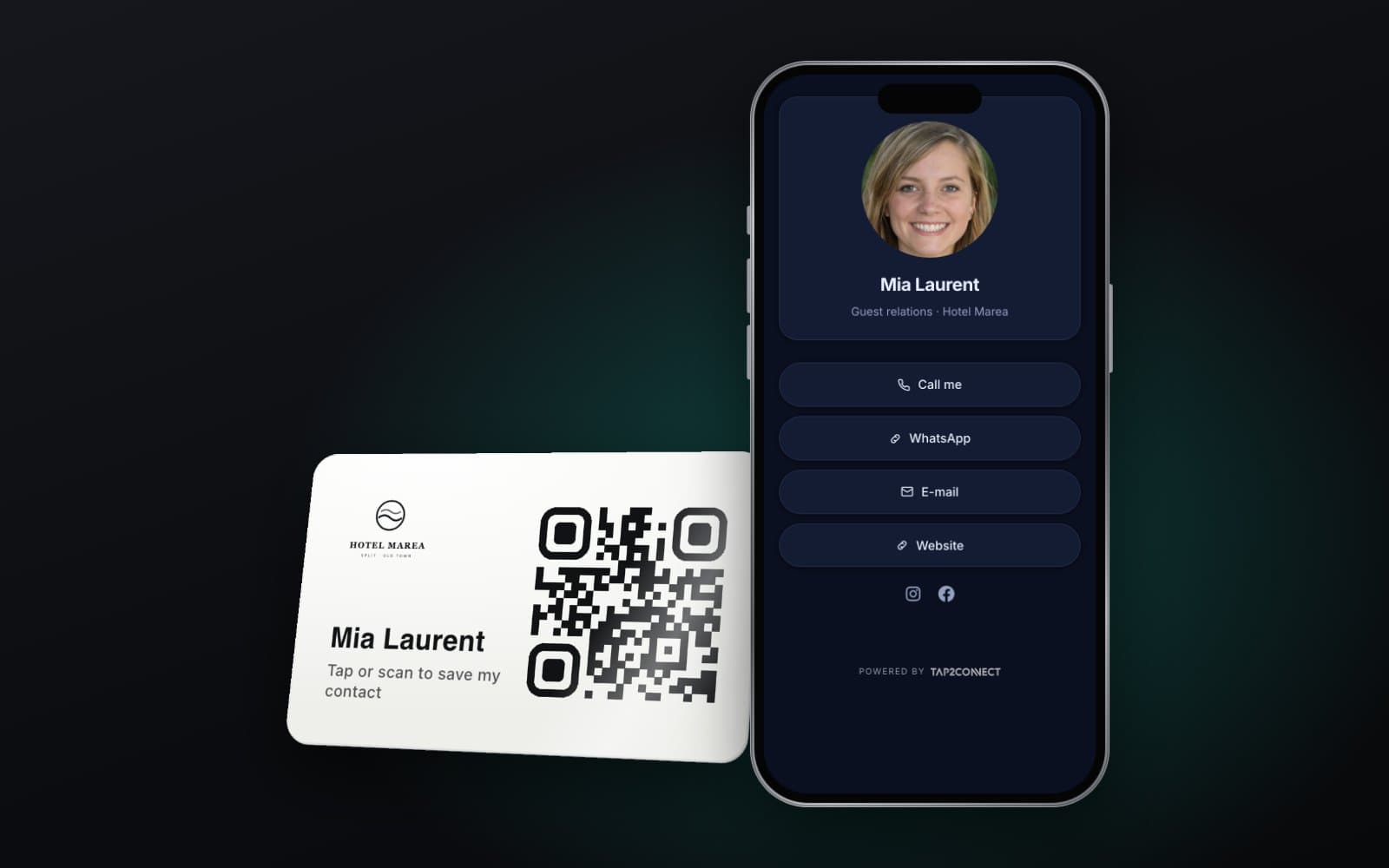
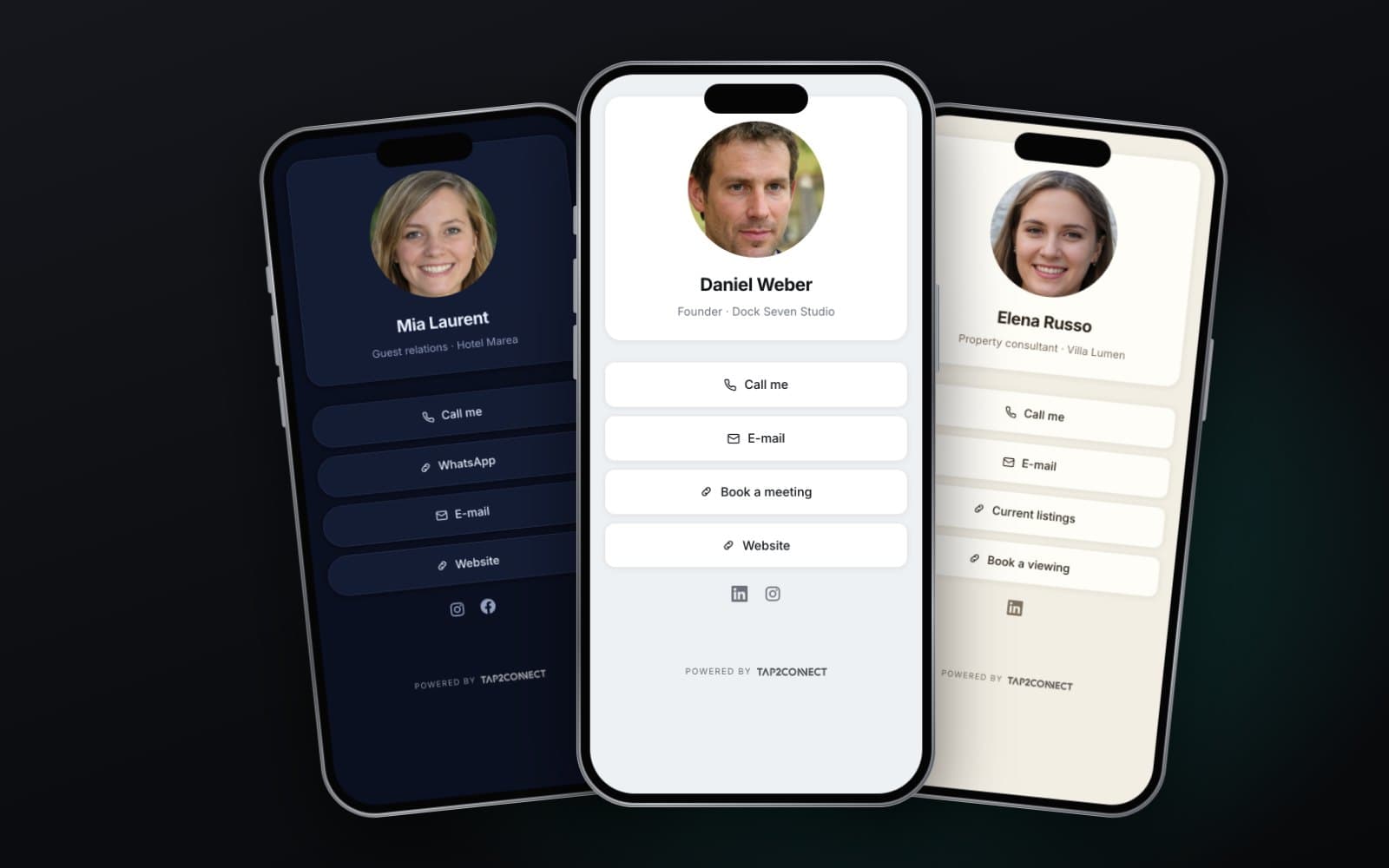
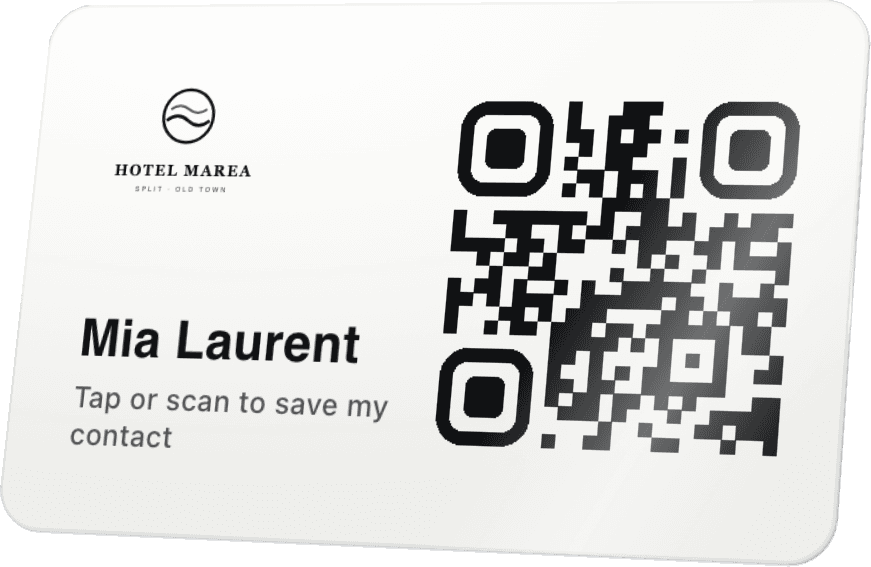
A digital business card is a short profile with your contact details, opened from a physical card, a phone sticker or a link. Someone taps the card with their phone, or scans its QR code, and your details appear with a button that saves you straight into their contacts. Choosing a digital business card in the UK means picking from anything between free apps and branded cards for whole teams. This guide sticks to what makes one work in practice.
How a digital business card works
The card holds an NFC chip and usually a QR code. Both point to the same place: your profile. The other person needs no app. Their phone opens the profile in its browser, and a “Save contact” button downloads a contact file their phone recognises, with your name, number, email and company already filled in.
Because the card points to a profile rather than storing your details on the chip, you can change anything later. New mobile number, new job title, new booking link: edit the profile, and every card you have already handed out shows the new details.
What to put on your card
Keep it to what helps someone contact you, or decide to. A good profile has:
- Name, job title and company, written exactly as you want them to appear in someone's contacts.
- A clear photo. People remember faces from a busy event far better than names.
- Mobile and email. Write UK numbers in international format, +44 7700 900123 rather than 07700 900123, so they also work for contacts abroad.
- A “Save contact” button at the top. It is the button that matters most.
- One action that moves things forward, such as booking a call, requesting a quote or viewing current listings.
- Website and LinkedIn. Add other social profiles only if you really use them for work.
Five or six buttons is plenty. A profile with twelve links reads like a link dump and dilutes the one action you want people to take.
Design that works on a small screen
- Your brand colours and logo, with strong contrast so the text is readable outdoors.
- Large buttons. People tap with their thumbs, often while holding a coffee.
- The main call to action right under your name, not hidden at the bottom.
- A QR code on the physical card, for phones with NFC switched off.
Ways to share it
The tap is the most memorable route, but it is only one. The same profile can go:
- On a physical card, or a sticker on the back of your phone, for meetings and events.
- In your email signature, as a simple “Save my details” link.
- On your LinkedIn profile and in your social bios.
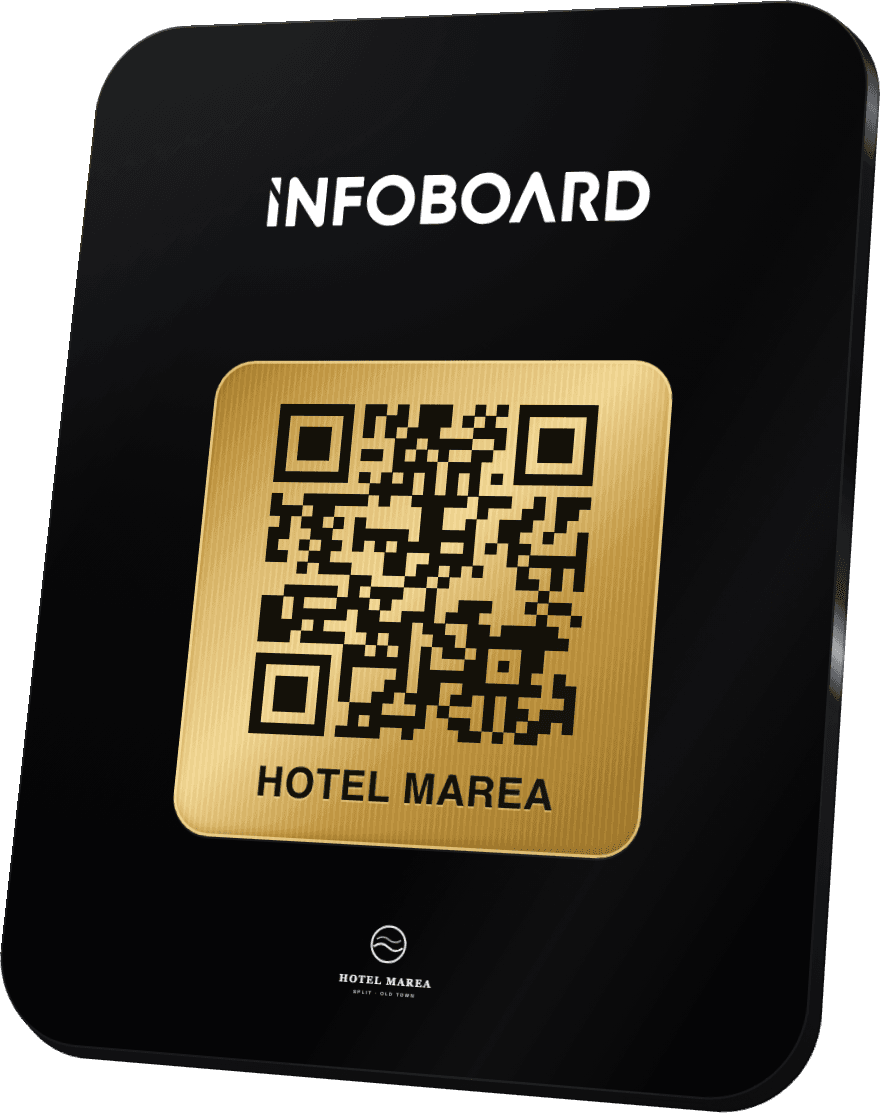
- On a small sign at your exhibition stand, so visitors can save you without waiting for you to finish a conversation.
- On printed proposals and invoices, as a QR code.
When digital cards make the biggest difference
Events and trade shows are the obvious case: you meet dozens of people in a day, and a tap saves your contact before the conversation ends. But digital cards also suit people who meet customers one at a time: estate agents at viewings, engineers at a customer's home, skippers with charter guests, consultants after a first meeting. For them, a card the customer keeps on their phone means the next call comes to them, not to whoever the customer finds online next time.
Mistakes that cost you contacts
- No save button, so people have to copy your details by hand.
- Numbers written without the country code.
- A profile that loads slowly because of huge images.
- A card that points to your website home page instead of your contact profile.
- Old details. The whole point is that you can update the profile, so do it the day something changes.
Paper cards are not dead, but they are the backup
Some people still like to hand over and receive paper, and in some sectors it is expected. There is nothing wrong with keeping a small box for those moments. The difference is that a digital card does the everyday work, and paper becomes the exception rather than the habit.
A quick checklist before you order
- Write your profile text and check every number and address.
- Choose one main action and put it under your name.
- Pick a format: card, phone sticker or both.
- Test the save contact button on iPhone and Android.
- Add the profile link to your email signature on the same day.
Where Tap2Connect fits
Tap2Connect is our digital business card: an NFC card or phone sticker with a QR code, pointing to a profile in your brand with a save contact button, a booking link and the buttons you choose. You update it from a dashboard and the card stays the same. The Tap2Connect page lets you switch between card designs and tap through a live profile on screen.
Do digital business cards work with iPhone?
Yes. Recent iPhones read NFC cards automatically, and any phone with a camera can scan the QR code on the card.
Does the other person need an app?
No. The profile opens in their browser, and the save contact button adds you to their phone's contacts.
Can I change my details after the card is printed?
Yes, as long as the card points to an online profile. You edit the profile and the card keeps working.
What should a digital business card include?
Name, title, company, photo, mobile, email, a save contact button and one main action, such as booking a call.